
macOS menu bar uploader
Loft
Drag a file to your menu bar.
Get a link back.
macOS 14+ · Apple Silicon & Intel · Free & open source
Drag a file to your menu bar.
Get a link back.
macOS 14+ · Apple Silicon & Intel · Free & open source
Features
Drop any file or folder onto the menu bar popover. Folders are zipped automatically before upload.
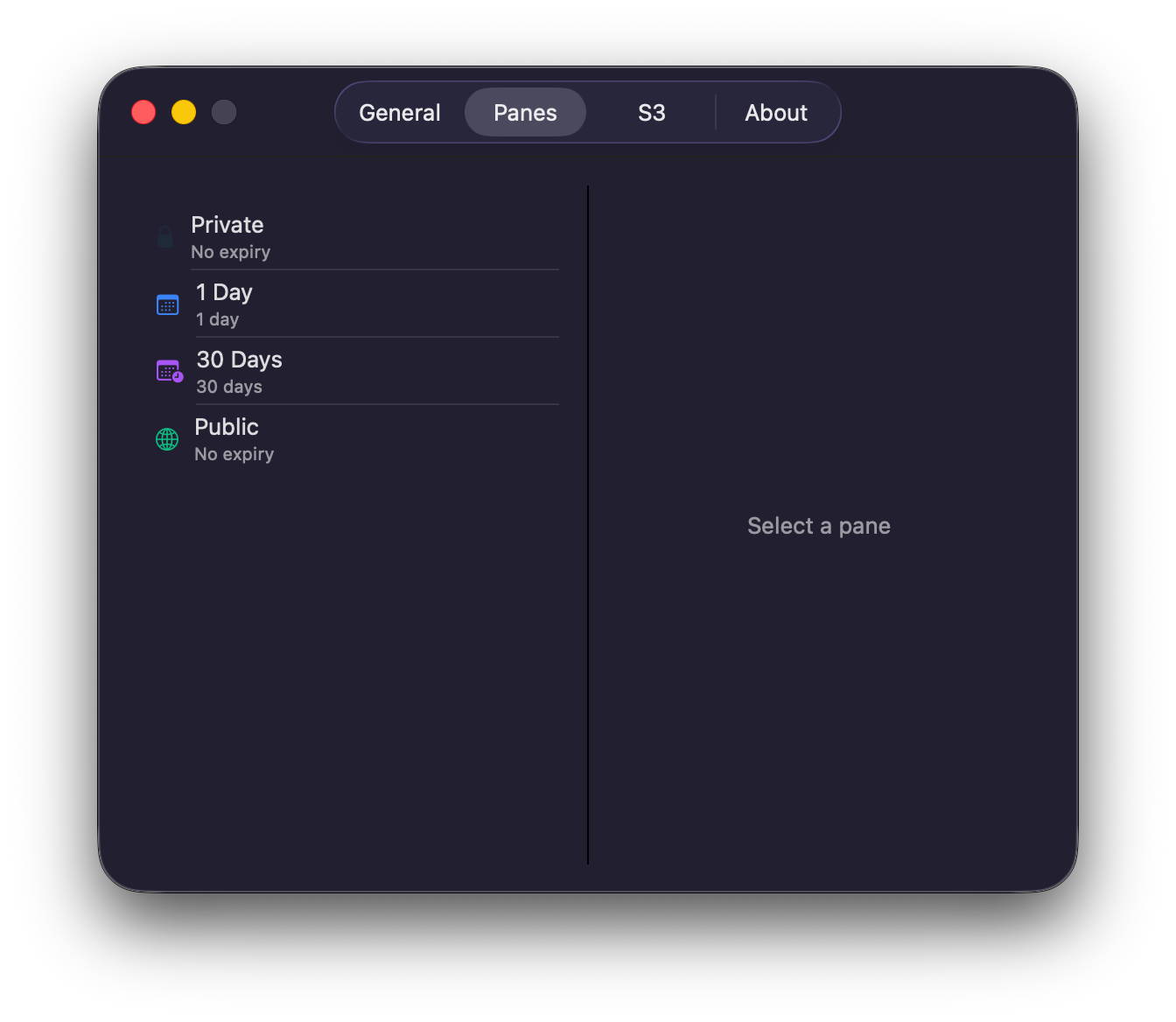
Select files, open Quick Actions, pick a pane. One "Upload to Loft" entry per pane, kept in sync with your settings. No drag needed.
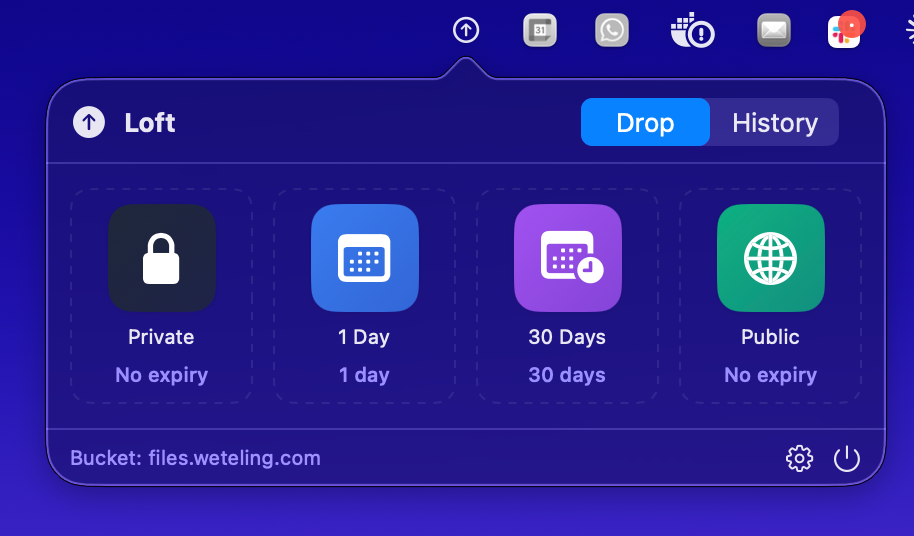
Private, 1 Day, 30 Days, Public. TTL panes use S3 lifecycle tags so files expire without cleanup scripts.
Files above 5 MB switch to multipart upload automatically — 8 MB chunks, 4 concurrent parts.
Large screen recordings are re-encoded on the Apple Silicon media engine before upload. Pick High quality, Balanced, Smallest file, or Fastest.
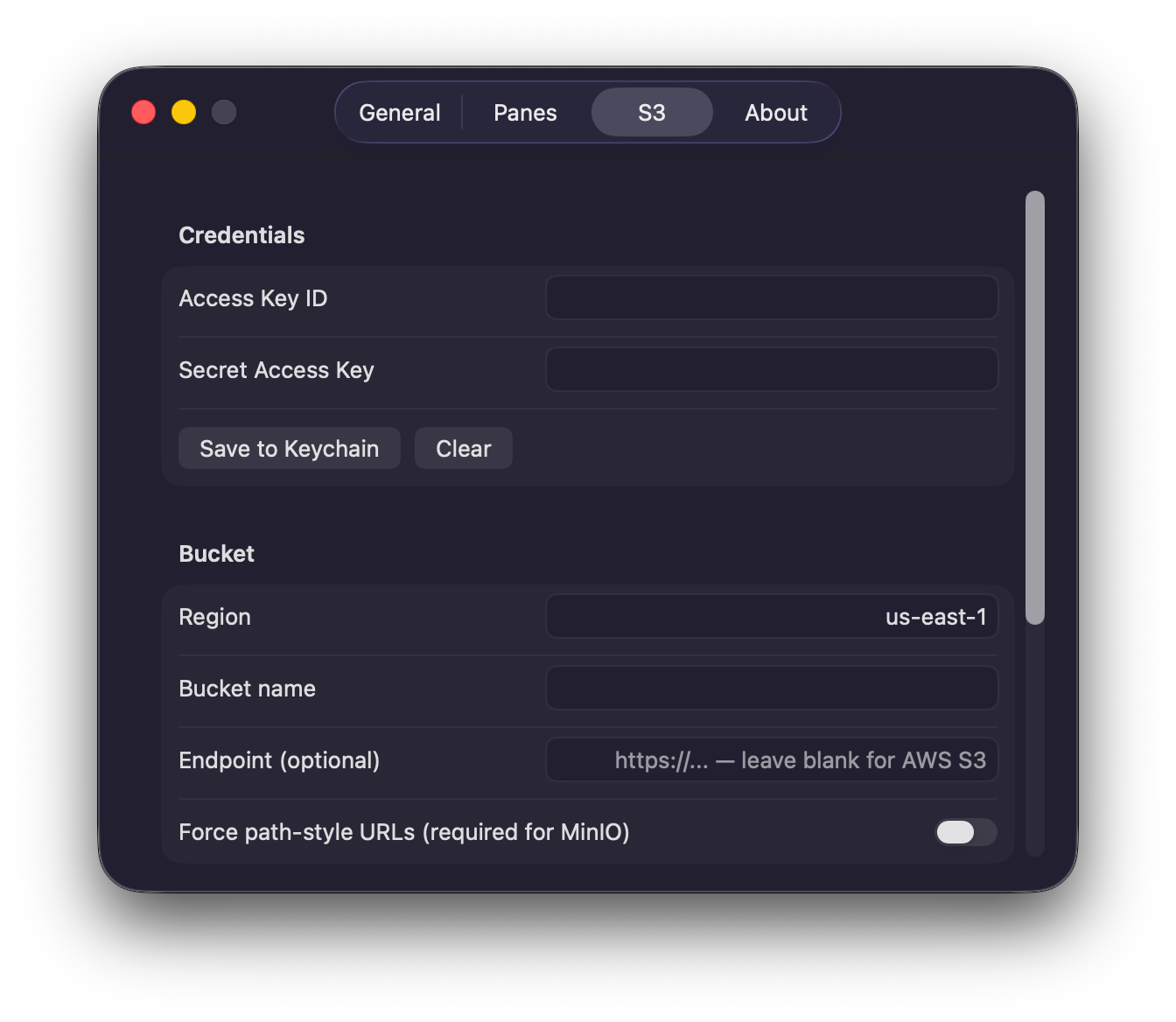
Works with AWS, Cloudflare R2, Backblaze B2, MinIO, and DigitalOcean Spaces via a custom endpoint field.
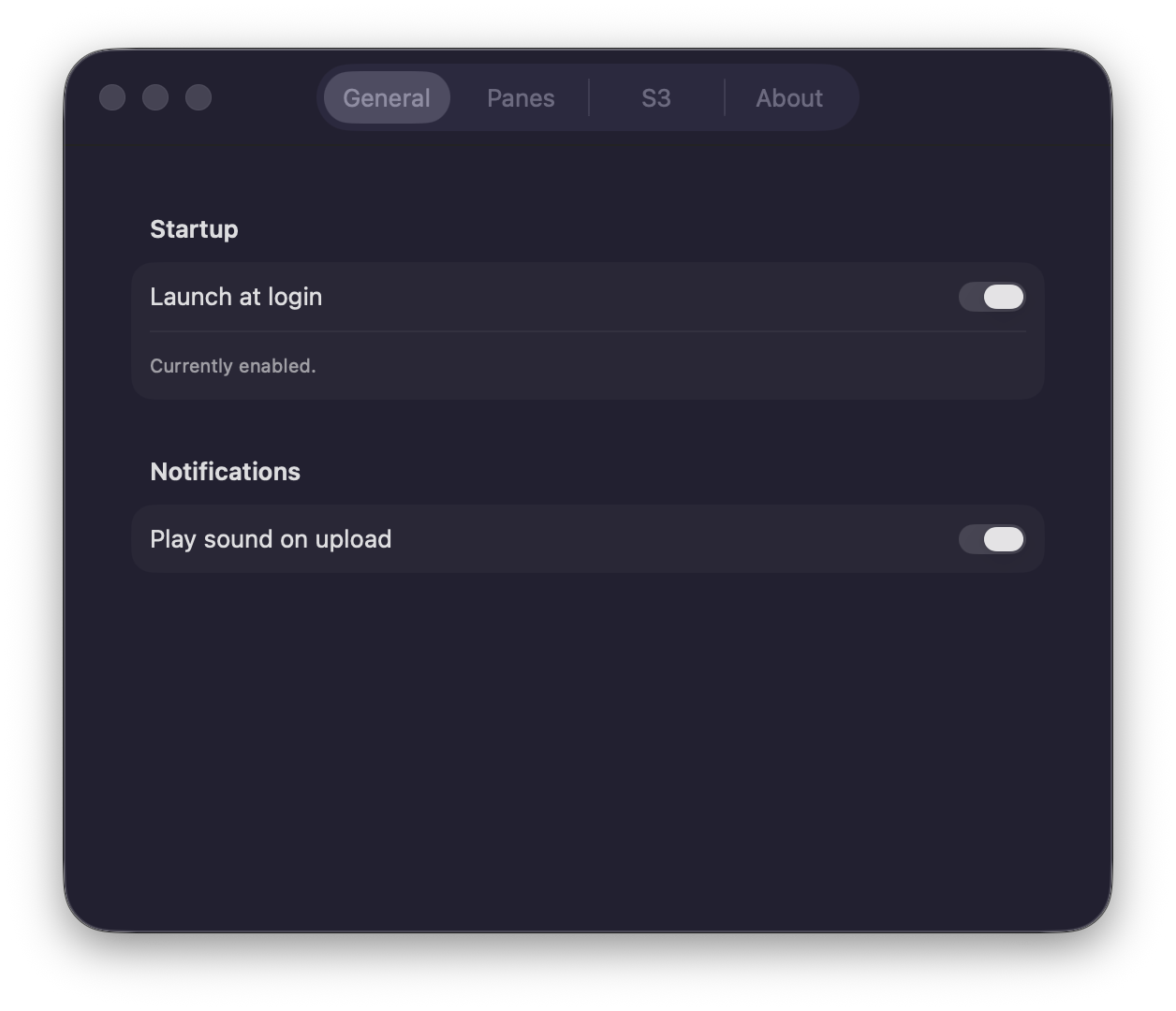
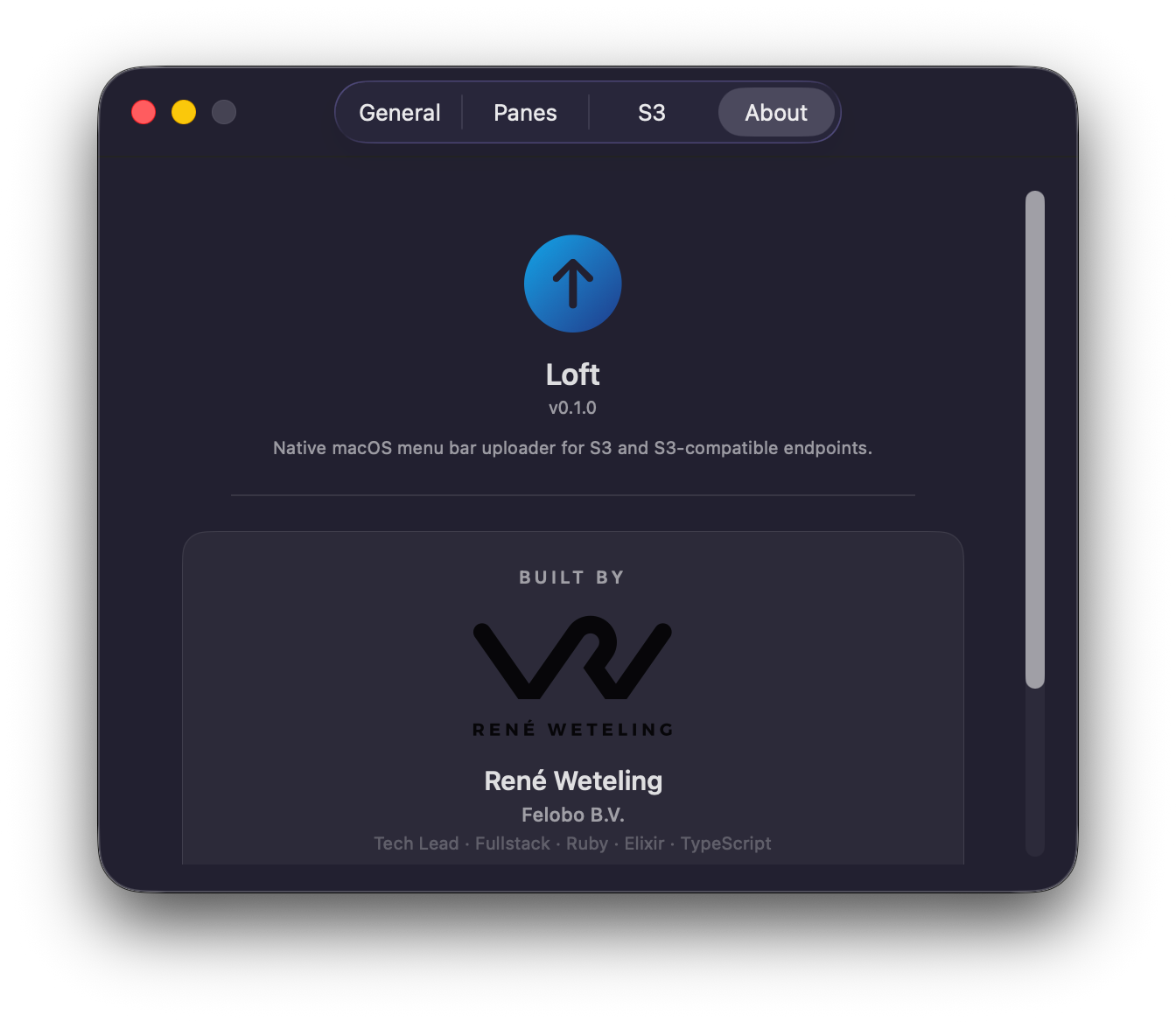
A six-second demo, then the full Settings tour.
How it works
Click the Loft icon in the menu bar to reveal the popover, then drag any file or folder from Finder onto it. Or skip the drag: right-click the file and pick a pane under Quick Actions.
Choose how long the link should live — Private, 1 Day, 30 Days, or Public — and release the file.
Upload completes, a system notification appears, and the shareable URL lands on your clipboard automatically.
Setup
You need an S3 bucket with lifecycle rules for the TTL panes, and a narrow IAM policy scoped to that bucket. The setup guides walk through everything — bucket creation, lifecycle rules, CORS, and the exact policy JSON.